
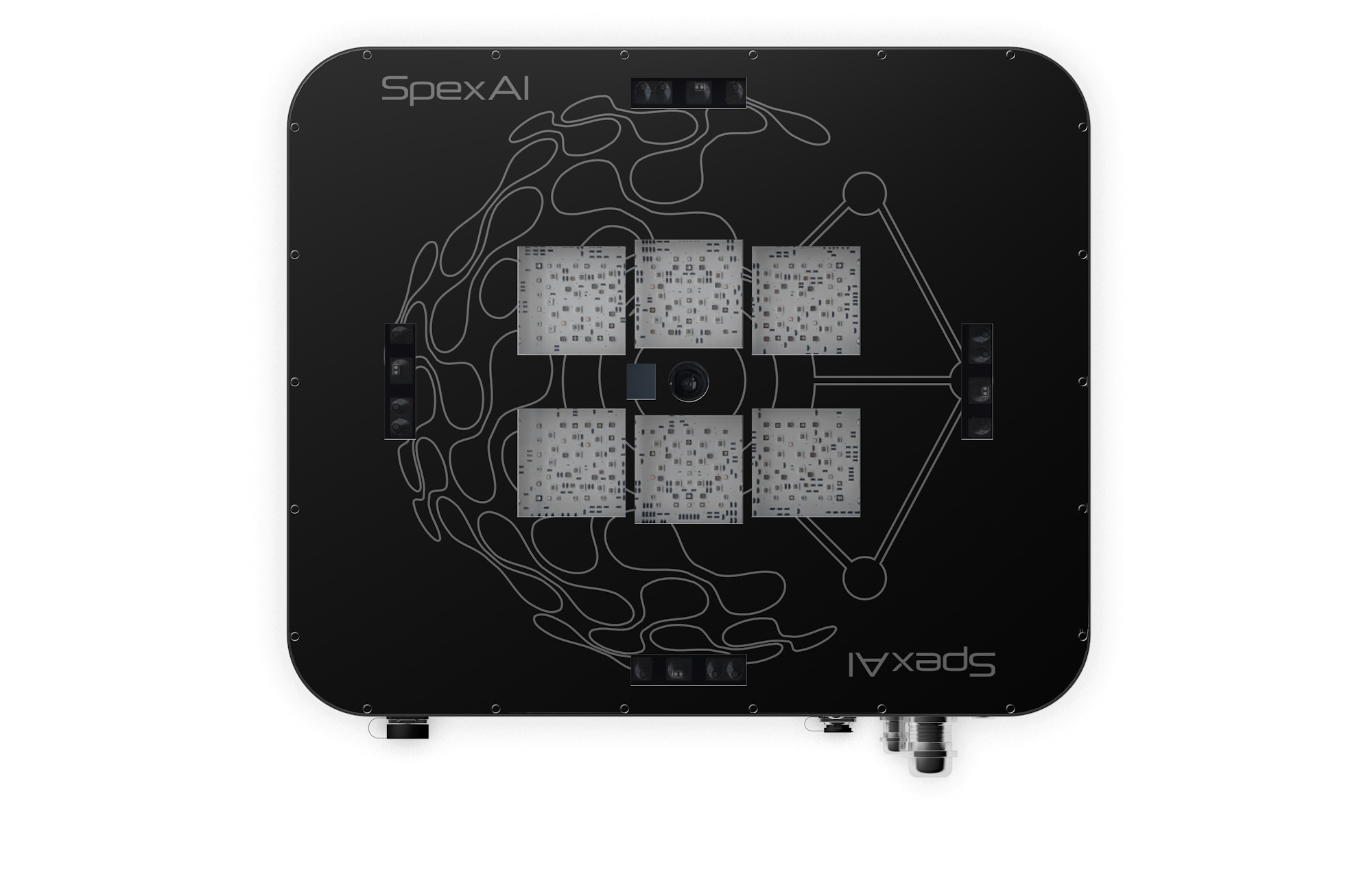


A comprehensive Python client and API server for interacting with SpexAI's Hugin image acquisition system. This package enables automated control, monitoring, and integration of Hugin's multi-sensor imaging system.

This repository provides two main interfaces to the Hugin system:
-
ZMQ Direct Client
- Low-level communication with Hugin using ZeroMQ
- Direct control of imaging parameters
- Binary/YAML message-based interface
-
WUR API Server ✨ New!
- RESTful API implementing the Remote Imaging Interface specification
- Bridge between HTTP requests and ZMQ communication
- Fully async with notification capabilities
Both interfaces provide robust functionality for:
- Configuring image acquisition parameters
- Triggering synchronized multi-sensor captures
- Monitoring system status and error conditions
- Managing data collection workflows
# Clone the repository
git clone https://github.com/SpexAI/Hugin_API.git
cd Hugin_API

# Install all dependencies
pip install -r python_examples/requirements.txtFor the WUR API server, create a .env file based on the provided template:
cp .env.example .env
# Edit the .env file to match your environmentimport asyncio
from hugin_client import ZMQClient
async def main():
# Initialize client
client = ZMQClient(host="localhost", port=5555)
# Send trigger command
await client.send_trigger()
# Get response
response = await client.receive()
# Process error codes
client.process_error_code(response)
if __name__ == "__main__":
asyncio.run(main())# Run the ZMQ client with a specific configuration
python python_examples/trigger_image_acquistion.py \
--host 192.168.1.100 \
--port 5555 \
--config yaml/guideline.yaml \
--debugCLI Options
| Option | Description | Default |
|---|---|---|
--host |
Hugin system hostname/IP | localhost |
--port |
ZMQ port number | 5555 |
--config |
Path to YAML config file | yaml/guideline.yaml |
--debug |
Enable debug logging | False |
--timeout |
Connection timeout (seconds) | 30.0 |
# Start the WUR API server
python -m wur_api.api_server
The server will be available at http://localhost:8000/RemoteImagingInterface.
For development and testing without a physical Hugin system:
# Terminal 1: Start the dummy Hugin ZMQ server
python -m wur_api.dummy_hugin --port 5555 --error-rate 0.2

# Terminal 2: Start the WUR API server
python -m wur_api.api_server
Dummy Hugin Options
| Option | Description | Default |
|---|---|---|
--host |
Host to bind to | * (all interfaces) |
--port |
Port to bind to | 5555 |
--error-rate |
Probability of generating errors (0.0-1.0) | 0.2 |
--delay-min |
Minimum processing delay (seconds) | 0.5 |
--delay-max |
Maximum processing delay (seconds) | 2.0 |
--debug |
Enable debug logging | False |
The ZMQ client uses YAML configuration files to specify image acquisition parameters:
Example YAML Configuration
required:
  path: 'test/test/'             # Path to the bucket
  plant-id: 'plant-id'           # Plant ID as used by client
  uuid: 'uuid'                   # UUID given by the system
  time-stamp: 'yy-mm-dd-hh-mm-ss'# UTC always
  position:
    greenhouse: 'greenhouse-name' # As it appears in the front end
    is-fixed: true               # false if one fixed position or table
    fixed:
      x: 1.2                     # Position x on the greenhouse grid
      y: 1.6                     # Position y on the greenhouse grid
    table:
      table-id: 'table-id'       # ID of the table
      row: 0                     # Row position on the table
      col: 0                     # Col position on the table
  sensors:
    spectral:
      in-use: true
      default-settings: true
    thermal:
      in-use: true
      default-settings: true
    3D:
      in-use: true
      default-settings: true
      settings:
preset: 'day' # The D415 can be configured through a config.jsonThe client includes comprehensive error code handling for various system states:
Error Codes Table
| Code | Description | Details |
|---|---|---|
| 0 | SUCCESS | ≥ 1 main, ≥ 2 3ds, ≥ thermal images captured |
| 1 | MAIN_CORRUPT | No or corrupt main image |
| 2 | 3D0_CORRUPT | No or corrupt 3D camera 0 |
| 4 | 3D1_CORRUPT | No or corrupt 3D camera 1 |
| 8 | 3D2_CORRUPT | No or corrupt 3D camera 2 |
| 16 | THERMAL_CORRUPT | No or corrupt thermal image |
| 32 | RESET_TIMEOUT | Timeout for reset (30s) |
| 64 | REBOOT_TIMEOUT | Timeout for reboot (1m) |
| 128 | FATAL_UNKNOWN | Fatal unknown error |
Common Combinations:
14: All 3D cameras missing (2 + 4 + 8)15: Only thermal present (1 + 2 + 4 + 8)
from hugin_client import ImageError, ZMQClient

async def handle_acquisition():
    client = ZMQClient()
    response = await client.receive()
    error, plant_id, image_dir = ImageError.parse_response(response)

    if error == ImageError.SUCCESS:
        logger.info(f"Acquisition successful for {plant_id}, stored at {image_dir}")
        return True

    if error & ImageError.THREE_D0_CORRUPT:
        logger.error("3D camera 0 failed")

    if error.value == 14:
        logger.error("All 3D cameras missing")

    return False
ZMQ responses from Hugin follow this space-separated format:
ERROR_CODE PLANT_ID IMAGE_DIRECTORY
Example:
0 DOR-1049-03 ImageSet_2025_03_01_20_10_58
The WUR API implements the Remote Imaging Interface specification, providing a RESTful interface to the Hugin system. It works by translating HTTP requests to ZMQ messages and handling the response.
graph TD
    Client[Client Application] -->|1. REST Request| WURAPI[WUR API Server]
    WURAPI -->|2. Parse & Validate| Transform[Transform Request]
    Transform -->|3. Prepare ZMQ Message| ZMQClient[ZMQ Client]
    ZMQClient -->|4. Send Message| Hugin[Hugin System]
    Hugin -->|5. Process Request| Hugin
    Hugin -->|6. Send Response| ZMQClient
    ZMQClient -->|7. Parse Response| WURAPI
    WURAPI -->|8. Format REST Response| Client

    subgraph "WUR API Server"
        WURAPI
        Transform
        ZMQClient
    end

    subgraph "Error Handling"
        WURAPI -->|Error Code Processing| ErrorMap[Error Mapping]
        ErrorMap -->|Translate Error Codes| WURAPI
    end

    subgraph "Notification System"
        WURAPI -->|Status Updates| Webhook[Webhook Manager]
        Webhook -->|Send Notifications| ClientNotif[Registered Clients]
    end
The typical workflow for interacting with the WUR API:
- Check Camera Status -
GET /status - Get Available Settings -
GET /settings - Apply Settings -
PUT /settings/{settingsName} - Set Metadata -
POST /metadata - Trigger Image Acquisition -
PUT /trigger/{plantId} - Poll Trigger Status -
GET /status/{triggerId} - Retrieve Image ID -
GET /getimageid/{triggerId} - Repeat
http://localhost:8000/RemoteImagingInterfacehttps://localhost:8000/RemoteImagingInterface
The WUR API supports client notifications via webhooks:
- Register -
POST /registerto receive notifications - Image Acquisition - Notifications sent when images are taken
- Heartbeats - Optional periodic health checks
- Unregister -
POST /unregisterto stop notifications
A comprehensive test suite is available for validation:
# Run all tests
pytest tests/

# Run API tests only
pytest tests/test_wur_api.py -vView Detailed API Reference
| Method | Endpoint | Description |
|---|---|---|
| GET | /status |
Get overall system status |
| GET | /settings |
List available settings files |
| PUT | /settings/{settingsName} |
Apply settings file |
| POST | /metadata |
Set metadata for next imaging task |
| PUT | /trigger/{plantId} |
Trigger new imaging task |
| GET | /status/{triggerId} |
Check status of triggered task |
| GET | /getimageid/{triggerId} |
Get image ID after completion |
| POST | /register |
Register for notifications |
| POST | /unregister |
Unregister from notifications |
ImagingMetaData
{
  "PlantId": "string",        // Plant identifier, unique within experiment
  "ExperimentId": "string",   // Experiment identifier
  "TreatmentId": "string",    // Treatment identifier
  "Height": 0.0,              // Height at which the plant is elevated
  "Angle": 0.0                // Angle at which the plant is rotated for imaging
}
CallBackRegistrationData
{
  "ClientName": "string",     // Name to identify a registered client
  "Uri": "string",            // URI where notifications should be sent
  "SendPathInfo": true,       // Whether to send the path where an image is stored
  "SendData": true,           // Whether to send the image data as binary blob
  "HeartBeatInterval": 0      // Interval in ms for heartbeat (0 = no heartbeat)
}
Response
{
  "Values": ["string"],       // Values returned, if any
  "Message": {
    "MessageText": "string",  // Extra info about the status of the call
    "Type": "string"          // Type: None, Error, Warning, Message, Success
  }
}- None: No specific message, operation completed
- Error: Operation failed with error
- Warning: Operation completed with warnings
- Message: Informational message
- Success: Operation completed successfully
Complete API Interaction Example
// 1. Check camera status
GET /status
// Response: { "Values": [], "Message": { "MessageText": "idle", "Type": "Message" } }

// 2. Get available settings
GET /settings
// Response: { "Values": ["standard", "high_res"], "Message": { "MessageText": "", "Type": "None" } }

// 3. Apply settings
PUT /settings/high_res
// Response: { "Values": [], "Message": { "MessageText": "", "Type": "Success" } }

// 4. Set metadata
POST /metadata
{
  "PlantId": "PLANT-001",
  "ExperimentId": "EXP-2025-03",
  "TreatmentId": "CONTROL",
  "Height": 1.2,
  "Angle": 45.0
}
// Response: { "Values": [], "Message": { "MessageText": "", "Type": "Success" } }

// 5. Trigger imaging
PUT /trigger/PLANT-001
// Response: { "Values": ["trigger-123"], "Message": { "MessageText": "", "Type": "Success" } }

// 6. Poll status
GET /status/trigger-123
// Response: { "Values": [], "Message": { "MessageText": "busy", "Type": "Message" } }
// ... wait ...
GET /status/trigger-123
// Response: { "Values": [], "Message": { "MessageText": "finished", "Type": "Message" } }

// 7. Get image ID
GET /getimageid/trigger-123
// Response: { "Values": ["PLANT-001_ImageSet_20250301_123456"], "Message": { "MessageText": "", "Type": "Success" } }The WUR API server and ZMQ client are configured using environment variables:
Configuration Options
| Variable | Description | Default |
|---|---|---|
| HUGIN_ZMQ_HOST | ZMQ server hostname/IP | localhost |
| HUGIN_ZMQ_PORT | ZMQ server port | 5555 |
| HUGIN_ZMQ_TIMEOUT | ZMQ timeout (seconds) | 20.0 |
| HUGIN_S3_BUCKET | S3 bucket for image storage | hugin-images |
| HUGIN_S3_BASE_PATH | Base path in bucket | images |
| WUR_API_HOST | API server host | 0.0.0.0 |
| WUR_API_PORT | API server port | 8000 |
| LOG_LEVEL | Logging level | INFO |
Comprehensive testing tools are included to validate both the ZMQ client and the WUR API server:
# Run all tests
pytest tests/

# Run specific test suite
pytest tests/test_wur_api.py
pytest tests/test_dummy_hugin.py

# Run with coverage report
pytest --cov=wur_api tests/
Test Coverage Overview
| Component | Description |
|---|---|
| API Endpoints | Tests for all API endpoints and response formats |
| ZMQ Communication | Tests for ZMQ client/server messaging |
| Error Handling | Tests for error detection and recovery |
| Notifications | Tests for client registration and notification delivery |
| Concurrency | Tests for async operations and request handling |
Contributions to the Hugin API are welcome! Please follow these steps:
- Fork the repository
- Create a feature branch (
git checkout -b feature/my-feature) - Make your changes following the project's coding style
- Add tests for your changes
- Run existing tests to ensure nothing was broken
- Commit your changes (
git commit -am 'Add new feature: description') - Push to your branch (
git push origin feature/my-feature) - Create a new Pull Request
Please follow these practices when contributing:
- Use semantic commit messages
- Add comprehensive docstrings and type hints
- Ensure async/await patterns are used for I/O operations
- Write unit tests for new functionality
- Follow the style guide in CLAUDE.md
This project is licensed under the MIT License.
For support and questions about the Hugin system, please contact SpexAI support or visit spexai.com/hugin.
Developed with ❤️ by SpexAI